Where Did That File Go? How Windows Apps Separate Downloads, Temporary Files and Exported Data
Last Updated on 24 September 2026
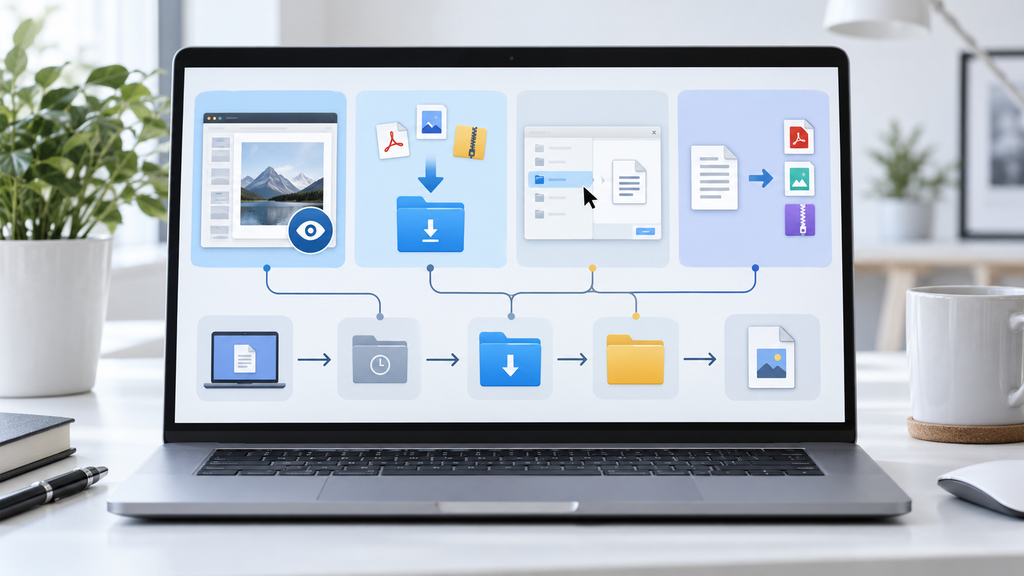
A file appears inside an application.
You open it successfully.
You can view the image, read the document, or watch the video.
Later, you search your Windows folders and cannot find it.
Many users assume something went wrong.
They think the download failed, the application lost the file, or Windows moved it somewhere unexpected.
In reality, the situation is often much simpler: opening a file, downloading a file, saving a file, and exporting a file are different actions.
Modern applications manage these actions separately because each one serves a different purpose.
A messaging app, browser, cloud service, or productivity tool may temporarily store data to improve performance without creating a permanent Windows file.
Understanding this difference can save time, prevent unnecessary reinstalls, and make file management much easier.
Seeing a File Does Not Mean Windows Saved It Permanently
One of the most common misunderstandings comes from confusing visibility with storage.
When an application displays a file, several things may have happened behind the scenes.
The application may have:
- loaded a preview;
- downloaded a temporary copy;
- stored data in its own cache;
- streamed the content;
- created a permanent file in a Windows folder.
From the user’s perspective, all five situations may look similar.
A photo opens.
A PDF appears.
A video plays.
However, Windows treats each situation differently.
For example, opening a document from a cloud-based service does not always mean a full copy exists inside the Downloads folder.
Likewise, viewing an image inside a messaging application does not automatically mean the original image has been saved as a normal file that other Windows applications can access.
This distinction explains why many users search the wrong location after opening something.
They are looking for a saved file when the application only created temporary access.
The Difference Between Open, Download, Save and Export
Many software interfaces use these words casually, but technically they represent different workflows.
Open
Opening means the application displays existing content.
The file may come from:
- cloud storage;
- a server;
- an application database;
- temporary local storage.
Opening alone does not always create a permanent copy.
Download
Downloading means obtaining a local copy from another location.
The application may place that copy in:
- a default download folder;
- an application-specific folder;
- a user-selected location.
Save
Saving usually means the user intentionally chooses where the file should remain.
For example:
Save As → Documents → Project Folder
The file now belongs to the Windows file system rather than only the application.
Export
Exporting creates a new version of information in another format.
Examples:
- exporting messages to HTML;
- converting a document to PDF;
- exporting account data;
- creating an archive.
Exported files may have completely different locations and names from the original content.
Confusing these four actions is one of the main reasons people lose track of files.
Windows Does Not Have One Universal Download Location
Many users assume every application sends files to:
C:\Users\Username\Downloads
That is only one possible location.
Applications can use different storage rules.
A file may appear in:
- Downloads;
- Documents;
- Desktop;
- OneDrive folders;
- application-specific folders;
- temporary directories;
- manually selected locations.
Browsers usually follow browser download settings.
Desktop applications may have their own preferences.
Cloud applications may synchronize folders.
Enterprise software may redirect files to managed locations.
Before searching the entire computer, it is better to understand which application handled the file and what storage method that application uses.
For users checking how different messaging clients handle installation and local access paths, a Telegram 下載指南 can serve as a practical example of why choosing the correct client environment matters before troubleshooting file behavior.
The important lesson is broader than one application:
The software responsible for displaying a file may not be the same software responsible for storing it.
Temporary Files Are Designed to Disappear
Temporary storage exists for a reason.
Applications use temporary files because keeping frequently accessed data nearby improves speed.
A messaging application may store:
- recently viewed images;
- video previews;
- thumbnails;
- recently opened documents;
- interface resources.
A browser may store:
- cached website assets;
- temporary downloads;
- session data.
A document application may store:
- recovery versions;
- autosave information;
- editing history.
These files can consume significant disk space over time.
However, they are not necessarily files users should manually manage one by one.
The application usually knows which temporary data can be removed safely.
This is why a storage cleanup option inside an application is often safer than randomly deleting folders from Windows directories.
Cache and Personal Files Should Be Treated Differently
A common mistake is assuming:
“Everything large inside the application folder can be deleted.”
That is risky.
A cache file and a personal document may look similar from a storage perspective, but they have different purposes.
A cache is usually:
- temporary;
- replaceable;
- created for performance.
A personal file is usually:
- intentionally saved;
- needed later;
- part of a project or record.
For example, a preview image stored by a messaging app is very different from a contract PDF that a user downloaded and moved into a business folder.
Before deleting anything, ask:
Did I create this file intentionally, or did the application create it automatically?
That single question prevents many accidental deletions.
Why the Same Account Can Use Different Storage on Two Computers
Cloud-based applications often confuse users because the account experience appears identical while local storage behavior changes between devices.
Imagine using the same messaging account on:
- a home laptop;
- a work computer.
The conversations may look identical.
The available files may appear identical.
But one computer may use 3 GB of local storage while the other uses 15 GB.
That is normal.
Local storage depends on:
- files opened on that device;
- media viewed;
- cache limits;
- automatic download settings;
- manually saved files;
- previous cleanup history.
Cloud synchronization keeps account data available.
It does not make every device maintain the same local copy.
This difference is especially important for users who switch between personal computers, office devices, and shared workstations.
Desktop Applications Usually Provide More File Control
Browser-based tools are convenient because they require little setup.
Desktop applications often provide more control because they can interact directly with the operating system.
A desktop client may allow users to manage:
- download folders;
- automatic media handling;
- local storage limits;
- file opening behavior;
- export options.
For example, a native messaging client may expose settings that determine whether media remains inside application storage or is saved into a normal Windows folder.
Users exploring these differences can refer to a Telegram Desktop file workflow guide as an example of how desktop applications handle downloads, local media, and user-controlled storage paths.
The same concept applies to many other desktop applications:
The more an application integrates with Windows, the more important it becomes to understand where it stores information.
File Names Can Create Hidden Duplicates
Another common source of confusion is repeated downloads.
Windows tries to prevent accidental overwriting.
If a user downloads the same file several times, the system may create:
report.pdf
report (1).pdf
report (2).pdf
The user may think:
“The download created different versions.”
In reality, Windows simply protected the existing file.
This becomes especially confusing when working with:
- invoices;
- presentations;
- project documents;
- images;
- exported reports.
A better habit is to rename important files immediately after saving them.
A meaningful name provides more information than an automatic number added by the operating system.
For example:
Instead of:
document-final2.pdf
Use:
ClientProposal_September2026.pdf
The goal is not only finding files later.
It is understanding what each file represents.
Searching for Files Before Reinstalling Applications
When users cannot locate a file, reinstalling the application is often the wrong first step.
A better troubleshooting sequence is:
Check recent files
Many applications maintain a recent document list.
Search by extension
Examples:
- .jpg
- .zip
- .docx
Search by modification date
A file downloaded today is unlikely to be hidden among years of old documents.
Check application settings
Look for:
- download location;
- export location;
- storage settings.
Check cloud folders
OneDrive and similar services may redirect common Windows folders.
This process usually finds the file faster than reinstalling software.
Exported Data Should Have a Permanent Home
Some files are not meant to remain inside messaging apps or temporary folders.
Examples include:
- business documents;
- customer records;
- design files;
- reports;
- backups;
- exported conversations.
After exporting important information, move it into a proper storage location.
Good file management usually includes:
- clear folders;
- meaningful names;
- backup copies;
- version information.
A messaging application can be an excellent place to receive information.
It is not always the best place to permanently organize that information.
A Simple Three-File Storage Test
Users can better understand any application by running a small test.
Choose three different file types:
- an image;
- a PDF document;
- a ZIP archive.
Then compare what happens when you:
- preview the file;
- open the file;
- download the file;
- save it manually;
- export it if available.
Record:
- file location;
- file name;
- file size;
- modified date.
This simple exercise reveals how the application separates temporary access from permanent storage.
It also helps users build better habits before important files become difficult to locate.
Storage Problems Are Often Understanding Problems
When an application uses more disk space than expected, the immediate reaction is usually:
“Something is wrong.”
Often, nothing is wrong.
The software is simply doing several different things at once:
- keeping data available;
- improving speed;
- storing previews;
- saving downloaded files;
- maintaining temporary recovery information.
The real problem is that users do not always know which category a file belongs to.
Once the difference between cloud data, cache, downloads, and exports becomes clear, storage management becomes much easier.
Instead of deleting everything or reinstalling applications, users can make more informed decisions about what should stay, what can be removed, and where important information should live.
Good file management starts with a simple question:
Where does this file actually belong?