One Document, Three Devices: How to Stop Version Confusion When Work Moves Between Phone and PC
Last Updated on 24 September 2026
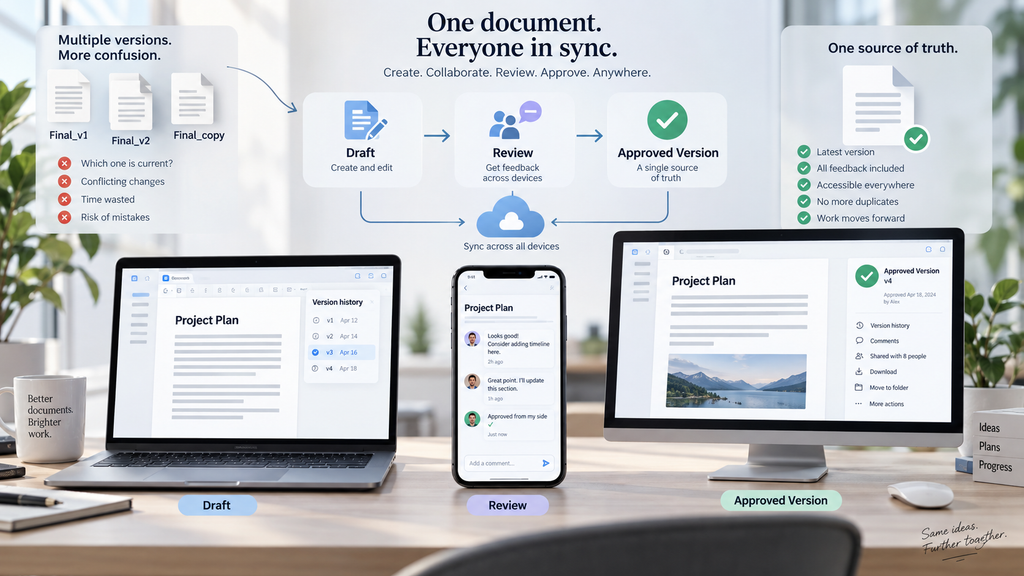
A document rarely stays on one device anymore.
A manager reviews a proposal on a laptop, a colleague adds comments from a phone, another team member opens the file from a desktop computer, and the final version is eventually shared through email or a messaging platform.
The flexibility is useful.
The confusion is familiar.
Someone asks:
“Is this the latest version?”
Three people respond with three different files.
One has a local copy saved yesterday. Another has a cloud version with recent edits. A third person has an email attachment that was marked “final” last week.
The problem is not that teams have too many devices.
The problem is that documents can move faster than the rules used to manage them.
A modern workflow needs a clear answer to one question:
Which version should everyone trust?
A Document Can Exist in Many Places Without Having Many “Current” Versions
Cloud tools have changed how people work.
A file created in one location can often be opened almost immediately somewhere else.
This makes many tasks easier:
- reviewing documents while traveling;
- approving changes remotely;
- checking reports outside the office;
- collaborating across time zones.
However, availability and control are different things.
A document may appear on several devices while only one location should represent the official version.
For example:
A team may have:
- the original cloud document;
- a downloaded copy;
- an email attachment;
- a phone-edited version;
- a PDF export.
All of them may contain useful information.
Only one should normally represent the active working file.
Without that distinction, every copy starts competing for attention.
The “Final Version” Problem Usually Starts With Small Decisions
Most version problems do not begin with a major mistake.
They begin with simple actions that seem harmless.
Someone downloads a document to make a quick edit.
Someone else updates the shared version.
A third person sends an attachment because it is faster than explaining where the file is stored.
After several rounds, the team has created multiple documents with unclear status.
Common examples include:
- Project_Final.docx
- Project_Final_New.docx
- Project_Final_Updated.docx
- Project_Final_Approved.docx
The filenames become longer, but the uncertainty remains.
A filename can describe a document.
It cannot replace a workflow.
The more important question is:
Where does the team agree the current version should live?
Syncing a File and Copying a File Are Different Workflows
Many users assume that moving between devices always means synchronization.
That is not always true.
A synchronized document
Usually refers to the same underlying file being available across devices.
Changes may appear automatically depending on the service and settings.
A copied document
Creates another independent file.
For example:
A user downloads a proposal from cloud storage, edits it locally, and sends the edited copy through email.
The original document and the attachment now have separate histories.
Both may be legitimate.
Neither automatically knows which one should become the official version.
This is why teams can experience version conflicts even when they already use cloud storage.
The problem is often not the absence of technology.
It is the creation of unmanaged copies.
Mobile Editing Adds Convenience—and More Decisions
Phones are now common work devices.
People review:
- contracts;
- presentations;
- spreadsheets;
- reports;
- customer documents;
from almost anywhere.
That flexibility is valuable.
However, mobile editing also introduces new questions.
When someone changes a document from a phone:
- Are they editing the shared version?
- Did the app create a local copy?
- Will the change sync automatically?
- Could another person update an older version at the same time?
The device itself is rarely the problem.
The problem is whether the workflow makes the document’s status clear.
A good cross-device process allows people to work anywhere while keeping ownership and version history understandable.
Productivity Software Helps Only When the Workflow Is Clear
Modern office applications provide many useful capabilities:
- cloud synchronization;
- comments;
- collaboration;
- file sharing;
- mobile editing;
- PDF tools;
- version history.
These features reduce friction, but they do not automatically create good document habits.
Teams still need basic rules:
- where the master document lives;
- who can approve changes;
- when a draft becomes final;
- where old versions are stored;
- whether attachments should be edited.
For users comparing all-in-one document workflows, a WPS Office 使用指南 can provide an example of how documents, spreadsheets, presentations, PDFs, and cloud-based work are combined inside one productivity environment.
The important lesson is not the specific software.
It is understanding how tools support a consistent workflow.
Email Attachments Are One of the Biggest Sources of Version Confusion
Email remains useful because it is simple.
The problem begins when attachments become the unofficial document system.
A common pattern looks like this:
“Please review the attached file.”
A recipient edits it.
The updated file is returned.
Another person downloads that version.
A week later, nobody knows which attachment contains the latest changes.
This creates several risks:
- missing edits;
- outdated information;
- duplicate documents;
- unclear ownership;
- lost comments.
Email is excellent for communication.
It is usually a poor replacement for a controlled document location.
A better approach is:
The document stays in its main workspace.
Messages explain what changed.
Replace Endless “Final” Files With Clear Document Status
Many teams try to solve version problems through naming.
The result is usually:
Final_v2
Final_v3
Final_Approved
Final_Approved_New
A clearer method is to separate status from filename.
Useful document states include:
Draft
The document is still being created.
Review
Feedback is being collected.
Approved
The content has been accepted.
Published
The document is ready for use.
Archived
The document is no longer active.
This approach helps teams understand where a file is in its lifecycle without creating endless variations of the same name.
Adding a New Device Should Not Create a New Document System
Many people add a second device without reviewing their workflow.
For example:
A user installs an office application on a new laptop.
They download several files.
They continue editing.
A month later, old local copies remain while the cloud version has changed.
Before adding another device, users should confirm:
- which account is connected;
- whether synchronization is enabled;
- where files are stored;
- whether offline editing is supported;
- how conflicts are handled.
When expanding a document workflow to another device, a WPS 下載指南 can help users identify the appropriate client environment before setting up their working process.
The download step is only the beginning.
The more important step is ensuring that the new device connects to the correct document workflow.
Offline Work Requires a Conflict Strategy
Cloud systems work best when devices stay connected.
Real work does not always happen under perfect conditions.
A person may edit documents:
- during travel;
- with unstable internet;
- away from the office;
- on a device with limited connectivity.
If multiple offline edits occur, teams need a clear way to handle conflicts.
Important questions include:
- Which version has priority?
- Who reviews conflicting changes?
- Are edits merged automatically?
- Where is the final decision recorded?
The newest timestamp is not always the correct answer.
A newer file can still contain older information.
Messaging Apps Should Support Work, Not Replace Document Management
Teams often send documents through messaging platforms because it is fast.
A file arrives immediately.
Someone reviews it.
Another person sends feedback.
The process feels efficient.
However, important documents can quickly become difficult to track.
Messaging is excellent for:
- notifications;
- quick questions;
- coordination.
Document systems are better for:
- ownership;
- history;
- version control;
- long-term access.
A useful rule is simple:
Use messages to coordinate the work.
Use a document system to preserve the work.
A Simple Three-Device Test Can Reveal Workflow Problems
Teams can test their process with one document.
Use:
Device One
Create the document.
Device Two
Edit it from a phone.
Device Three
Open it from another computer.
Then check:
- Did everyone see the same version?
- Was a duplicate created?
- Were edits synchronized?
- Was the latest change obvious?
- Could another person identify the approved version?
This small exercise often reveals problems before they affect real projects.
It is especially useful for small businesses that have moved from simple file sharing into multi-device collaboration.
The Best Workflow Makes the Right Document Obvious
Technology has made it easier to work from anywhere.
The challenge is ensuring that flexibility does not create uncertainty.
A document should be easy to access.
It should also be easy to identify.
The strongest workflows combine:
- one trusted location;
- clear ownership;
- visible status;
- controlled sharing;
- predictable device behavior.
The goal is not preventing people from using different devices.
The goal is making sure every device connects back to the same source of truth.
A productive team should not need to ask:
“Which file looks newest?”
They should already know:
“Which document is the one we trust?”