How to Optimize AI-Generated Images for Social Media in 2026
Last Updated on 31 March 2026
AI image generators like Midjourney, DALL-E, and Stable Diffusion have revolutionized content creation. You generate a stunning image in seconds, ready to share with your audience. But when you upload it to Instagram, Facebook, or LinkedIn, the reality hits—your image appears pixelated, cropped awkwardly, or rejected for size requirements. The AI that created your masterpiece didn’t optimize it for social media platforms.
This is where Imglarger comes in. It is a free ai photo enhancer designed to enhance, upscale, and convert images for any platform or purpose. Whether you need to increase resolution, sharpen details, or change file formats, Imglarger provides the tools to transform your AI-generated visuals into professional-quality social media content that stands out.
What is AI-Generated Image Optimization?
AI-generated image optimization is the process of enhancing and adjusting images created by AI tools to meet specific platform requirements and quality standards. While AI image generators excel at creative content, they often produce outputs with limitations: standard resolutions (usually 1024×1024 pixels), compression artifacts, or formats that don’t work across all platforms.
Optimization involves upscaling resolution to meet platform specifications, enhancing clarity and sharpness, removing compression noise, converting to supported formats (JPG, PNG, WebP), and adjusting aspect ratios for different social media channels. Without these steps, even the most compelling AI-generated visuals will underperform—appearing blurry on high-resolution displays, getting cropped incorrectly, or failing to catch audience attention in crowded feeds.
Why You Need to Enhance AI Images for Social Media
Social media platforms have evolved rapidly in 2025, and so have their image requirements. Instagram now supports up to 4K resolution on supported devices, LinkedIn recommends 1200×627 pixels for shared images, and TikTok thumbnails demand precise 1080×1920 vertical formatting. Most AI generators, however, default to 1024×1024 outputs—simply too small for modern platforms.
Beyond resolution, AI-generated images often exhibit subtle artifacts: noise in gradients, slightly soft edges, or compression banding that becomes visible when displayed on premium displays. These issues might not be noticeable on a laptop screen but become glaringly apparent on your audience’s high-end smartphones and tablets.
Perhaps most critically, each social platform favors specific file formats. Instagram prefers high-quality JPGs, Twitter (X) handles both JPG and PNG efficiently, while WebP is gaining traction for faster loading times. When your AI-generated image isn’t optimized, you’re sacrificing engagement—blurry or poorly formatted content gets scrolled past, regardless of how creative the original concept was.
How to Use Imglarger to Optimize AI-Generated Images
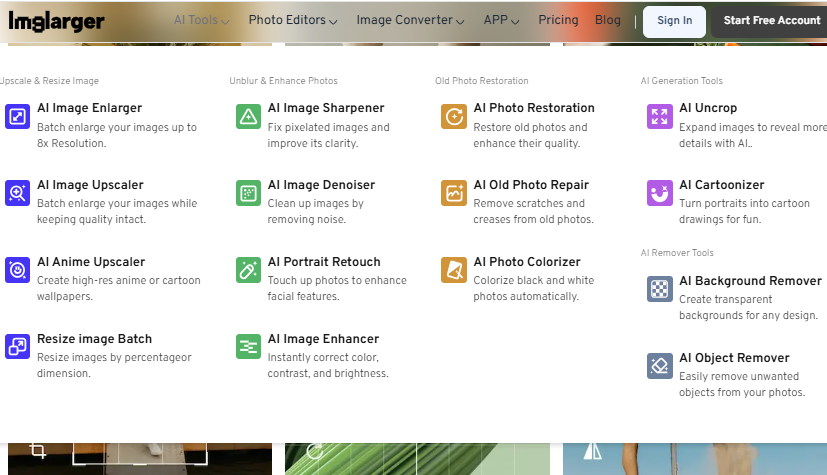
Step 1: Go to Imglarger
Open your web browser and navigate to the Imglarger website. You’ll find a comprehensive suite of AI tools organized into three categories: AI Tools for enhancement and upscaling, Image Editing Tools for basic adjustments, and Image Converters for format changes. No account creation is required to get started, though registering unlocks additional features like batch processing and higher resolution outputs.
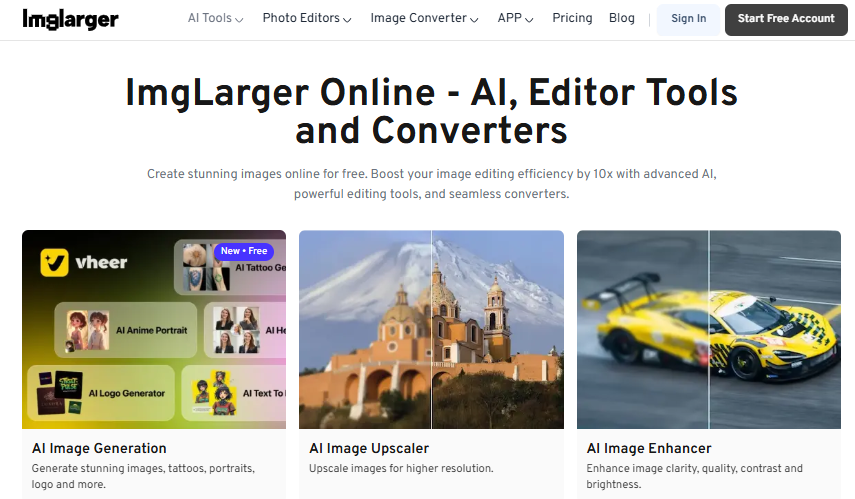
Step 2: Select the Right AI Tool
For AI-generated social media images, you’ll typically start with either AI Image Enlarger or AI Image Enhancer. The Image Enlarger is ideal when you need to increase resolution significantly—upscaling that 1024×1024 Midjourney output to 4K for Instagram or print-quality dimensions. The Image Enhancer focuses on improving overall quality: sharpening details, boosting colors, and reducing noise without changing dimensions. If your AI image is already the right size but looks slightly soft or lacks vibrancy, the Enhancer is your go-to tool.
Step 3: Upload Your AI-Generated Image
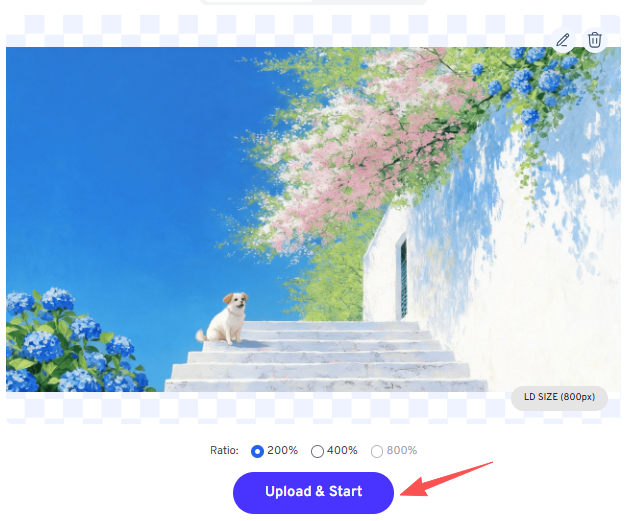
Click the upload area or drag and drop your AI-generated image into the workspace. Imglarger supports the most common formats: JPG, PNG, and WebP. The platform handles images up to 3000px for free users, with premium subscribers able to process larger files up to 4000×4000. Whether your image is a realistic art or a creative style like pixel art creation, Imglarger supports all types. Turn photos to pixel art or optimize existing pixel art creations to maintain sharp edges and vibrant colors on social media.
Step 4: Configure Enhancement Settings
This is where platform-specific optimization happens. For AI Image Enlarger, choose your upscaling multiplier: 200% doubles your image dimensions (perfect for 2K displays), 400% quadruples them (ideal for 4K content), and premium users can select 800% for massive resolution gains. If you’re working with AI Image Enhancer, you can adjust enhancement intensity—the higher the setting, the more dramatic the sharpening and color improvements.
Step 5: Process and Download
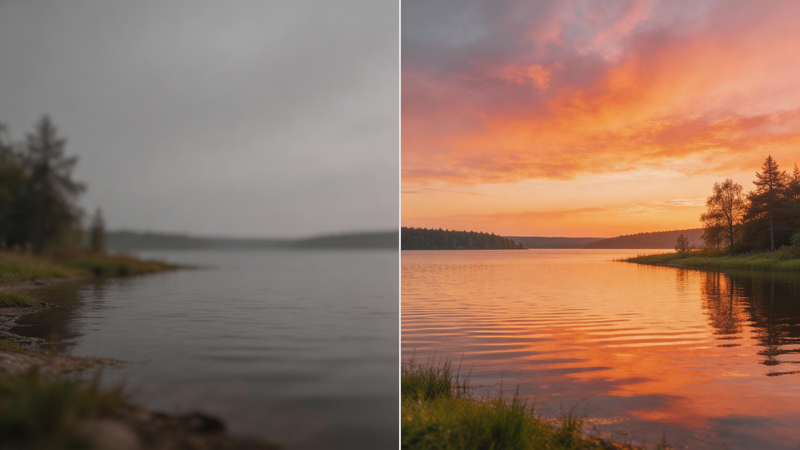
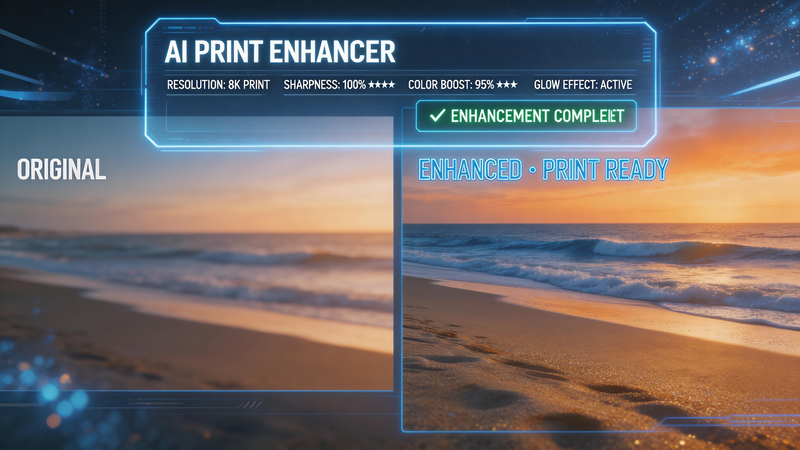
Click “Upload and Start” and let Imglarger’s AI work its magic. Processing typically completes within seconds, depending on image size and selected enhancement level. Once finished, you’ll see a side-by-side comparison of your original and optimized images. Use the comparison slider to inspect the improvements: sharper edges, enhanced details, more vibrant colors, and eliminated noise or compression artifacts.
If you’re satisfied with the results, click “Download” to save the optimized image to your device.
Pro Tips for Optimizing AI Images on Different Platforms
Instagram-Specific Optimization
Instagram has evolved into a high-resolution platform, and your AI-generated images should reflect that. For feed posts, upscaling AI images to at least 2000px on the longest side ensures they appear crisp on modern smartphones. Instagram Stories require special attention—since these are viewed vertically on mobile devices, use the AI Image Enlarger at 400% to guarantee text and details remain readable. Always export in JPG format for maximum compatibility, and consider using Imglarger’s Image Editor to crop your images to Instagram’s preferred 4:5 aspect ratio for feed posts or 9:16 for Stories.
Facebook and LinkedIn Best Practices
Facebook’s compression algorithms can be aggressive, so pre-optimization is crucial. Upscale your AI images to at least 2000px and use the AI Image Enhancer to boost sharpness and color saturation—this headroom ensures your images survive Facebook’s compression with minimal quality loss. LinkedIn prioritizes professional clarity, so focus on the AI Image Enhancer rather than extreme upscaling. A 1500px width with enhanced sharpness and slight vibrance boost performs optimally for LinkedIn posts and article featured images.
Twitter/X and WebP Format
Twitter (X) has embraced WebP format for faster loading, and Imglarger makes conversion seamless. After upscaling and enhancing your AI-generated image, use Imglarger’s Image Converter to transform it into WebP format. WebP files maintain high quality at smaller file sizes—perfect for Twitter’s fast-paced feed. Just remember that some other platforms don’t fully support WebP yet, so keep a JPG backup for cross-posting to Instagram or LinkedIn.
Batch Processing for Content Campaigns
When you’re managing a social media campaign with multiple AI-generated visuals, efficiency matters. Imglarger premium subscribers can use batch processing to upscale or enhance multiple images simultaneously. This is particularly valuable for Instagram carousels, TikTok content series, or A/B testing different image variations. Upload all your AI-generated images at once, apply consistent enhancement settings, and download the complete optimized set in one operation—saving hours compared to processing images individually.
Platform-Specific Aspect Ratios
Different social platforms favor different aspect ratios, and Imglarger’s AI image enhancer helps you adapt. Before or after enhancement, use the Crop Image tool to adjust dimensions: 1:1 for standard Instagram feed posts, 4:5 for taller Instagram portraits, 16:9 for Twitter and LinkedIn shared images, and 9:16 for vertical content on Instagram Stories, TikTok, and YouTube Shorts. Proper aspect ratio positioning before enhancement means you’re upscaling only the pixels that matter, avoiding unnecessary file size and processing time.
Conclusion
AI image generators have opened creative possibilities that didn’t exist just a few years ago, but platform optimization remains the bridge between generation and publication. Imglarger provides that bridge—transforming standard AI outputs into high-resolution, sharp, vibrant images ready for any social media platform.
Whether you’re upscaling Midjourney creations for Instagram, enhancing DALL-E illustrations for LinkedIn, or converting images to WebP for Twitter, Imglarger’s AI photo enhancers streamline the optimization process. The platform delivers professional results in seconds, requires no technical expertise, and ensures your AI-generated visuals perform their best across all social channels.
Start optimizing AI-generated images today with Imglarger. Your social media audience will notice the difference—and your engagement will reflect it.